 Posted by
 Learn how to complete Wix Search Console verification, connect a Wix website to Google Search Console, submit your sitemap, and fix common Wix SEO issues.

wix search console verification
Table of Contents
How Alexa Ranking Works
- how to connect wix website to google search console,
- wix issues,
- google search console for wix,
- google search console wix,
SEO Title: Wix Search Console Verification: Connect Wix to Google Search Console
Meta Description: Learn how to complete Wix Search Console verification, connect a Wix website to Google Search Console, submit your sitemap, and fix common Wix SEO issues.
Introduction
If you have a website built with Wix, connecting it to Google Search Console is one of the most important steps for improving your website’s visibility in Google Search. Google Search Console for Wix allows you to monitor how Google discovers, crawls, and indexes your pages.
The Wix Search Console verification process is relatively simple, and Wix provides tools that make connecting your website to Google easier. Once your site is connected, you can check indexing status, search performance, sitemap information, mobile usability, and other SEO-related issues.
In this guide, we will explain how to connect a Wix website to Google Search Console, complete the verification process, submit your Wix sitemap, and troubleshoot common Wix issues that can affect Google Search.
What Is Google Search Console?
Google Search Console is a free service from Google that helps website owners understand how their websites perform in Google Search.
With Google Search Console, you can:
- Check which pages Google has indexed
- Monitor Google Search impressions and clicks
- Find keywords that bring visitors to your website
- Submit and monitor your sitemap
- Inspect individual URLs
- Identify indexing problems
- Check Core Web Vitals and other page experience signals
- Find certain mobile and technical SEO issues
- See whether Google has encountered problems crawling your website
For Wix website owners, connecting Search Console provides valuable information that is difficult to get from Wix analytics alone.
Why Should You Connect Wix to Google Search Console?
Wix includes many built-in SEO features, but Google Search Console provides information directly from Google’s search systems.
Connecting the two platforms can help you understand:
- Whether Google can access your Wix website.
- Which pages have been indexed.
- Which pages are excluded from search results.
- Which search queries are generating traffic.
- Whether your sitemap has been discovered.
- Whether Google has identified indexing or technical problems.
- How your website’s organic search performance changes over time.
This makes Google Search Console Wix integration particularly useful for new websites and websites that are actively publishing content.
How to Connect a Wix Website to Google Search Console
The easiest way to connect a Wix website to Google Search Console is through Wix’s SEO and verification features.
Before starting, make sure:
- Your Wix website has been published.
- You have access to the Wix account that manages the website.
- You have a Google account.
- You are using the correct website URL.
- Your website is accessible publicly.
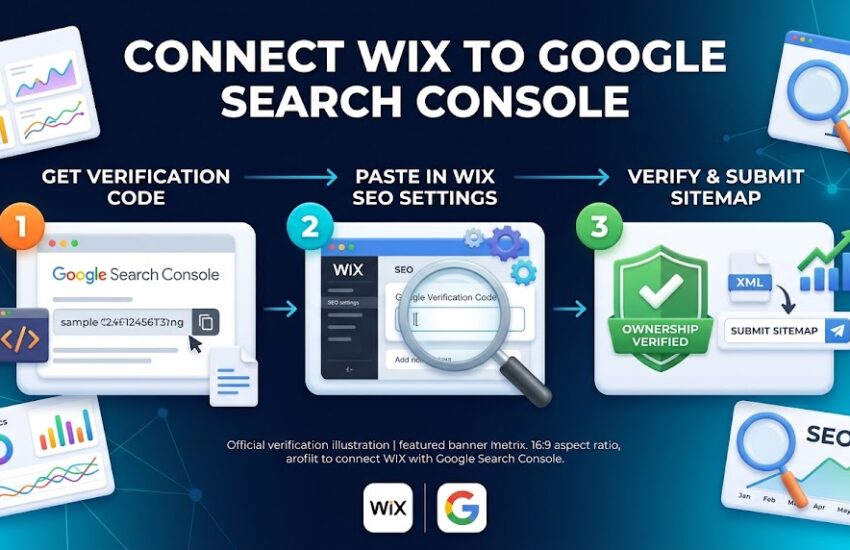
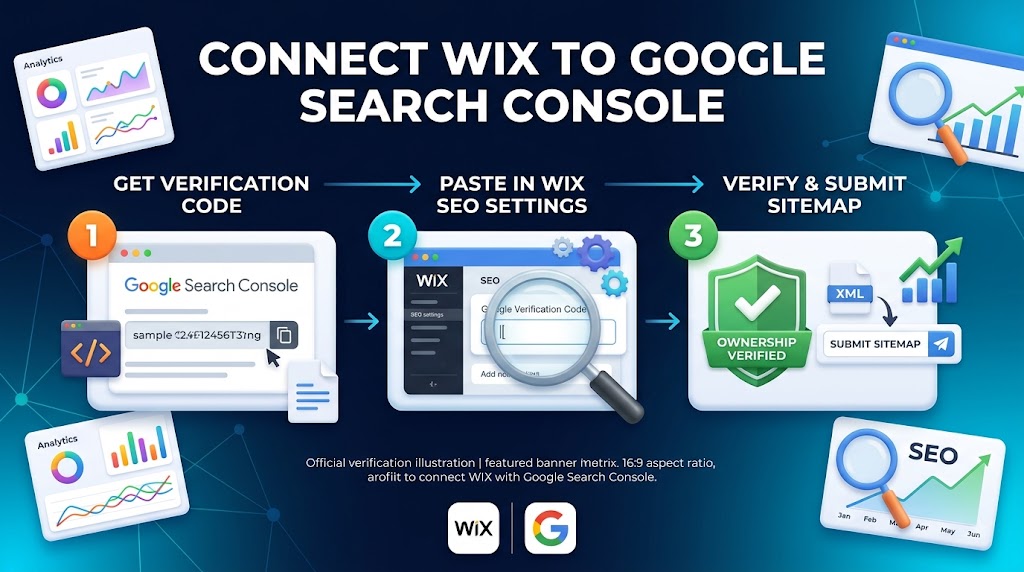
Step 1: Open Google Search Console
Go to Google Search Console and sign in with the Google account you want to use for managing your website.
Google Search Console allows you to add your website as a property.
You will generally see two property options:
- Domain
- URL prefix
For many Wix users, URL Prefix can be a straightforward option because it allows you to verify a specific website URL.
Step 2: Add Your Wix Website
After signing in, select the option to add a new property.
Enter the full URL of your Wix website.
For example:
Make sure you enter the correct version of your website. Differences such as http versus https or www versus non-www can matter when setting up a property.
Click Continue.
Google will then provide several verification methods.
Step 3: Choose a Verification Method
Google may provide different methods for verifying website ownership.
Depending on your Wix setup and the verification options available, you may be able to use:
- HTML tag verification
- DNS verification
- Google Analytics
- Google Tag Manager
For Wix websites, HTML tag verification is often convenient because the verification code can be added through Wix’s verification or SEO settings.
Step 4: Complete Wix Search Console Verification
If Google provides an HTML verification tag, copy the verification code provided by Google.
Then sign in to your Wix account.
Open the Wix dashboard for the website you want to verify and look for the site’s SEO or verification settings.
Depending on the current Wix interface, the exact menu names can change. Wix periodically updates its dashboard, so the location of a specific verification option may not look exactly the same for every user.
Paste the Google verification information into the appropriate Wix field and save the changes.
Make sure your website is published after making the change.
Return to Google Search Console and click Verify.
If Google can detect the verification information on your website, ownership will be confirmed.
How to Verify Wix Website Using DNS
DNS verification can also be used to verify a Wix website, particularly when you want to verify the entire domain property.
With DNS verification, Google provides a TXT record that needs to be added to your domain’s DNS settings.
The general process is:
- Open Google Search Console.
- Add your domain property.
- Select DNS verification.
- Copy the TXT record provided by Google.
- Open the DNS management area for your domain.
- Add the TXT record.
- Save the DNS changes.
- Return to Google Search Console.
- Click Verify.
DNS changes can sometimes take time to become visible across the internet, so verification may not always work immediately.
If you purchased your domain through Wix, you may manage DNS settings within Wix. If your domain is connected to Wix but registered with another provider, you may need to add the DNS record through that domain provider.
How to Submit a Wix Sitemap to Google Search Console
After completing verification, the next important step is submitting your sitemap.
A sitemap helps search engines discover URLs that you want them to crawl.
Wix automatically generates a sitemap for websites using its standard SEO infrastructure.
For many Wix websites, the sitemap can be found at:
Replace example.com with your actual domain.
Submit Your Wix Sitemap
To submit your sitemap:
- Open Google Search Console.
- Select your Wix website property.
- Open Sitemaps.
- Enter your sitemap URL.
- Click Submit.
- Wait for Google to process the sitemap.
After Google processes the sitemap, Search Console can show its status and related information.
Remember that submitting a sitemap does not guarantee that every URL will immediately appear in Google Search. Google still decides which pages to crawl and index.
How to Check Wix Pages in Google Search Console
One of the most useful features of Google Search Console is the URL Inspection tool.
You can enter a Wix page URL into the inspection field to see whether Google knows about the page.
You may see information such as:
- URL is on Google
- URL is not on Google
- Page is indexed
- Page is not indexed
- Crawling information
- Canonical URL
- Sitemap information
If a new Wix page has not appeared in Google yet, URL Inspection can help you understand its current status.
Common Wix Issues in Google Search Console
Although Wix provides many SEO features, website owners can still encounter Wix issues in Google Search Console.
Some common problems include:
1. Page Is Not Indexed
A page may not appear in Google because Google has not crawled it yet or because the page does not meet Google’s indexing requirements.
Use URL Inspection to investigate the specific URL.
If the page is eligible for indexing, you may be able to request indexing through Google Search Console.
However, requesting indexing does not guarantee immediate indexing.
2. Sitemap Not Processed
Sometimes a sitemap may show an error or may not be processed immediately.
Check that:
- The sitemap URL is correct.
- Your website is publicly accessible.
- Your Wix website is published.
- The sitemap does not return an error.
- You submitted the sitemap to the correct Search Console property.
3. Verification Failed
If Wix Search Console verification fails, check the following:
- You added the verification information correctly.
- The website is published.
- You are verifying the correct URL.
- The verification code has not been modified.
- Your domain is connected correctly.
- DNS changes have had enough time to propagate if you are using DNS verification.
4. HTTPS or URL Version Problems
A common source of confusion is having multiple versions of a website, such as:
http://example.comhttps://example.comhttps://www.example.comhttps://example.com
Your preferred website version should be configured correctly, and you should make sure you are inspecting the correct URL in Search Console.
5. Duplicate or Canonical URL Issues
Google may discover multiple URLs that contain similar or duplicate content.
Search Console can report canonical-related information when Google chooses a different canonical URL than the one you expected.
Review your Wix SEO settings and make sure your important pages have appropriate canonical URLs.
How to Fix Google Search Console Issues on Wix
If Search Console reports an issue, do not immediately assume that something is wrong with your entire Wix website.
First, identify the exact URL and issue.
Then:
Check the URL
Use the URL Inspection tool to investigate the page.
Check Indexing
Determine whether the page is indexed, excluded, or simply waiting to be crawled.
Check Your Sitemap
Make sure the relevant page can be discovered through your site’s sitemap when appropriate.
Check Wix SEO Settings
Review the page’s SEO settings and make sure you have not accidentally prevented search engines from indexing it.
Check Robots and Noindex Settings
A page containing a noindex directive generally should not be indexed by Google.
If an important page is unintentionally set to noindex, correct the setting and allow Google to recrawl the page.
Does Wix Work With Google Search Console?
Yes. Wix websites can be connected to Google Search Console, and Wix provides SEO features designed to help website owners manage search visibility.
However, Wix does not control Google’s indexing decisions.
Google determines:
- Which pages it crawls
- When pages are crawled
- Which pages are indexed
- How pages rank
- Which search results are displayed
Therefore, connecting Wix to Google Search Console is an important technical step, but it does not guarantee rankings or traffic.
Google Search Console for Wix: Best Practices
Once your website is verified, check Search Console regularly.
Monitor Performance
Look at clicks, impressions, average position, and search queries.
Monitor Indexing
Review indexed and excluded pages and investigate important URLs that are unexpectedly excluded.
Keep Your Sitemap Healthy
Check the sitemap periodically to make sure Google can access it.
Improve Content
Search Console can show the queries people use to discover your website. Use this information to improve existing content and create useful new pages.
Fix Important Technical Issues
Prioritize issues affecting important pages rather than trying to fix every warning immediately.
Frequently Asked Questions
How do I connect my Wix website to Google Search Console?
Add your Wix website as a property in Google Search Console, choose an available verification method, complete the verification through Wix or your domain’s DNS settings, and then submit your Wix sitemap.
How do I complete Wix Search Console verification?
You can use one of Google’s available ownership verification methods. Depending on your setup, this may include HTML verification or DNS verification.
What is the Wix sitemap URL?
For a standard Wix website, the sitemap is generally available through the site’s /sitemap.xml URL.
For example:
Why is my Wix website not showing on Google?
There can be several reasons. Google may not have crawled the website yet, pages may be excluded from indexing, the site may have technical issues, or the content may not currently qualify for Google’s search results.
Use Google Search Console’s URL Inspection and indexing reports to investigate.
How long does Wix Search Console verification take?
Verification can be almost immediate when Google can detect the verification information correctly. DNS verification may take longer if the DNS record has not propagated yet.
Does submitting a Wix sitemap guarantee indexing?
No. A sitemap helps Google discover URLs, but Google decides whether and when individual pages are crawled and indexed.
Can I use Google Search Console with a free Wix website?
The available verification and domain options can depend on your Wix setup. If you are using a Wix site with a custom domain, domain-level SEO and verification options may be broader than with a free Wix URL.
Final Thoughts
Completing Wix Search Console verification is an important step for any Wix website owner who wants to understand and improve their Google Search presence.
The basic process is simple: add your Wix website to Google Search Console, verify ownership, submit your sitemap, inspect important URLs, and monitor indexing and search performance.
If you experience Wix issues, use Google Search Console to identify the specific problem rather than making unnecessary changes to the entire website. Regularly checking indexing, sitemap status, search performance, and important SEO settings can help you maintain a healthier Wix website over time.
Whether you are building a small business website, blog, portfolio, or larger content site, Google Search Console for Wix gives you useful information about how Google sees your website and where there may be opportunities for improvement.